
Use the following steps to cancel an ACH credit payment for all accounts.
-
Log in to the RLPay application. The Account Summary page appears.
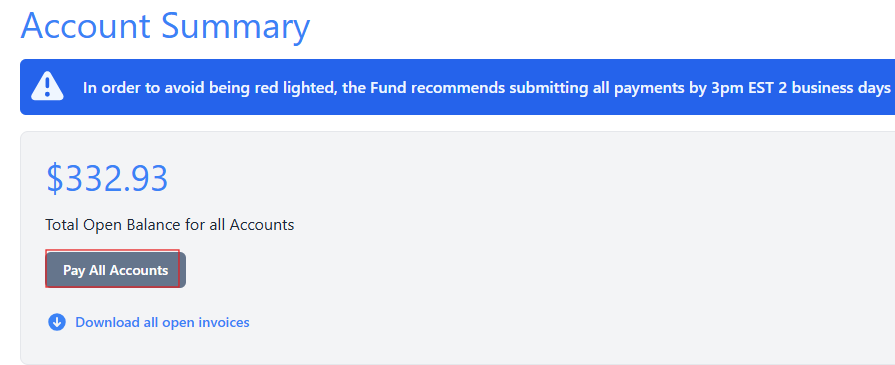
Account Summary -
Select Pay All Accounts. The Choose Payment Amounts page appears.
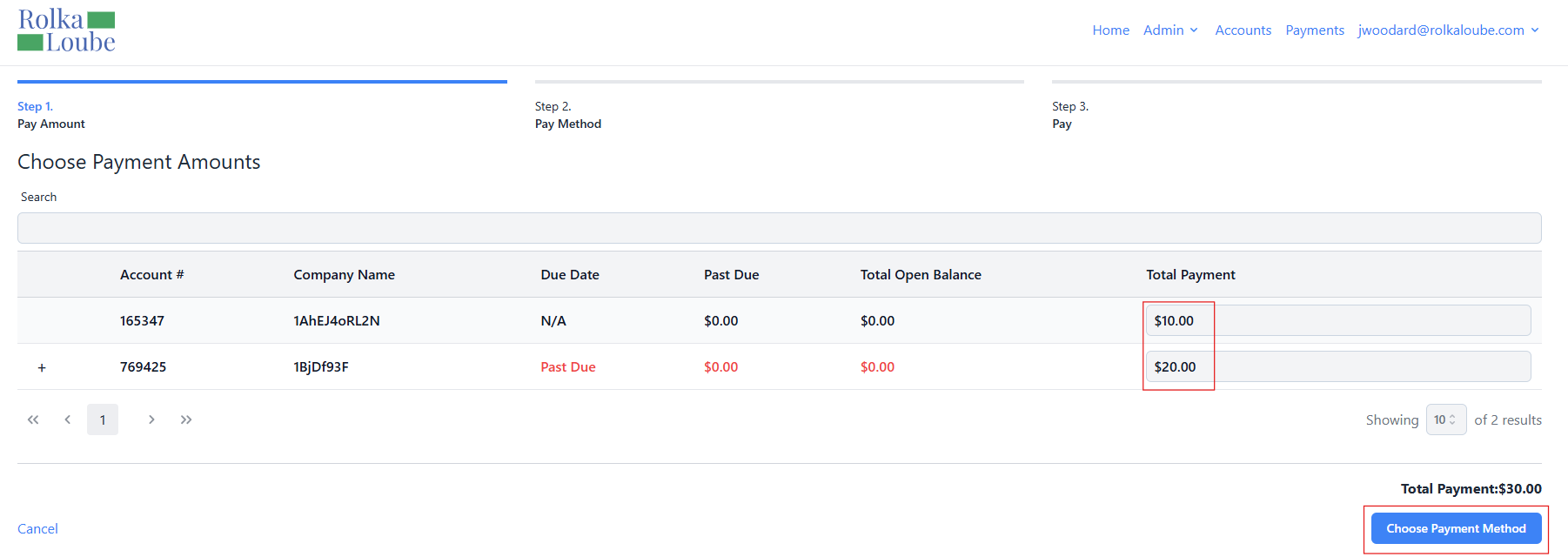
Choose Payment Amounts -
Enter the amount you want to pay for each account in the Total Payment field.
Note: The payment amount must be greater than zero in order to choose the payment method. -
Select Choose Payment Method. The Choose a Payment Method page appears.
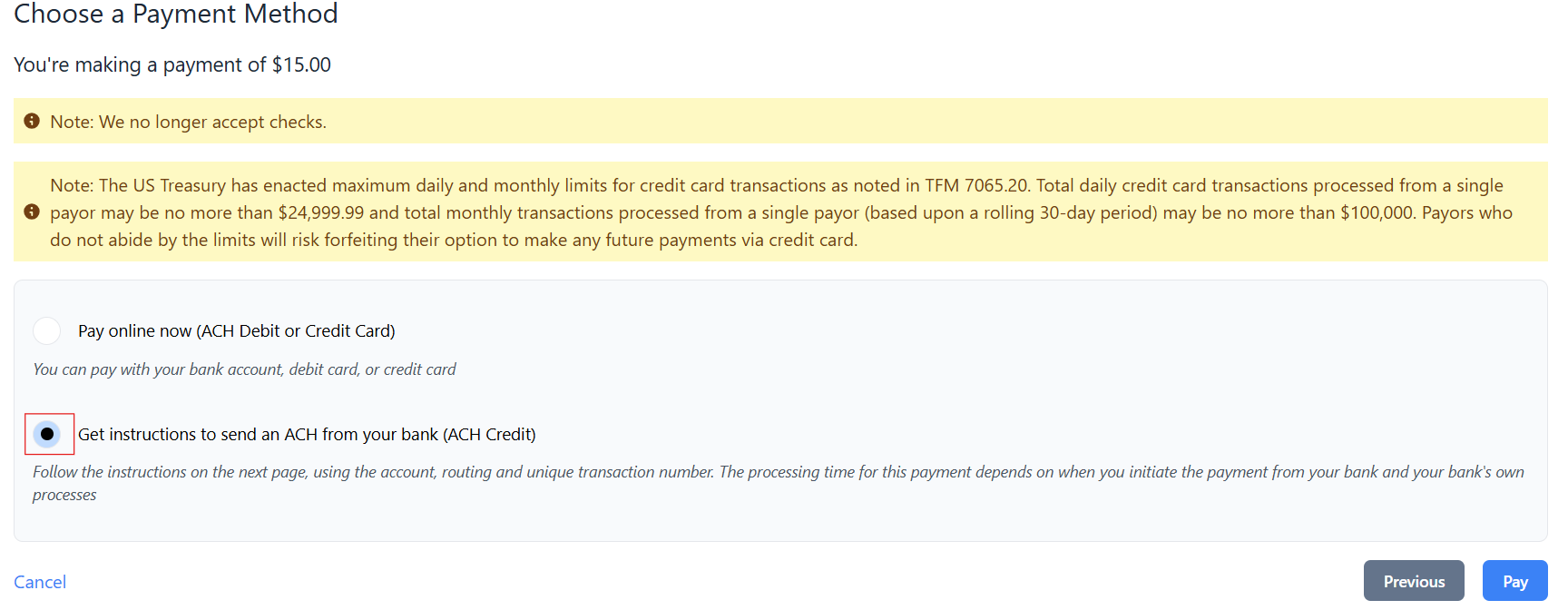
Choose A Payment Method -
Select Get instructions to send an ACH from your bank (ACH credit).
-
Select Pay. The ACH Notice pop-up widow appears.
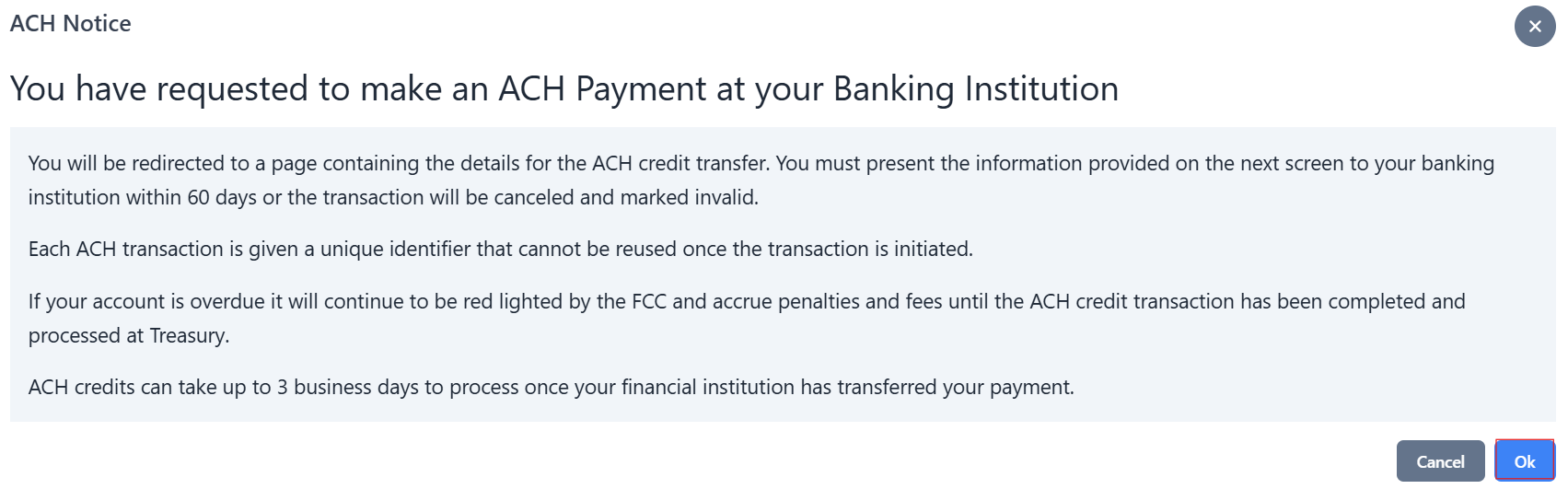
ACH Notice -
Select Ok. The ACH Credit Instructions page appears.
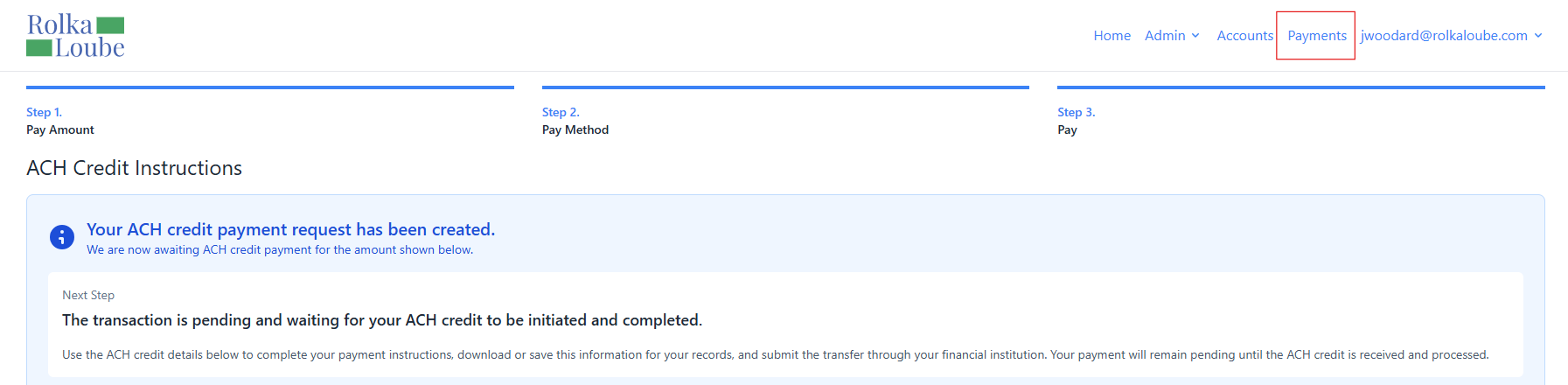
ACH Credit Instructions -
Select Payments at the top of the page.
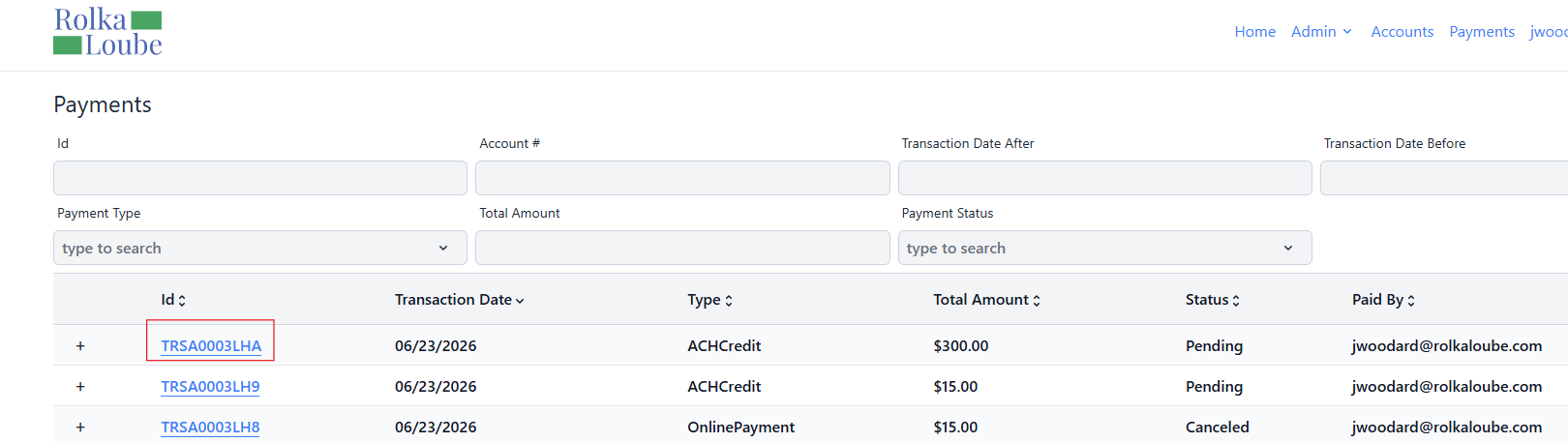
Payments -
Select the Id of the payment you want to cancel. The Payment Details page appears.
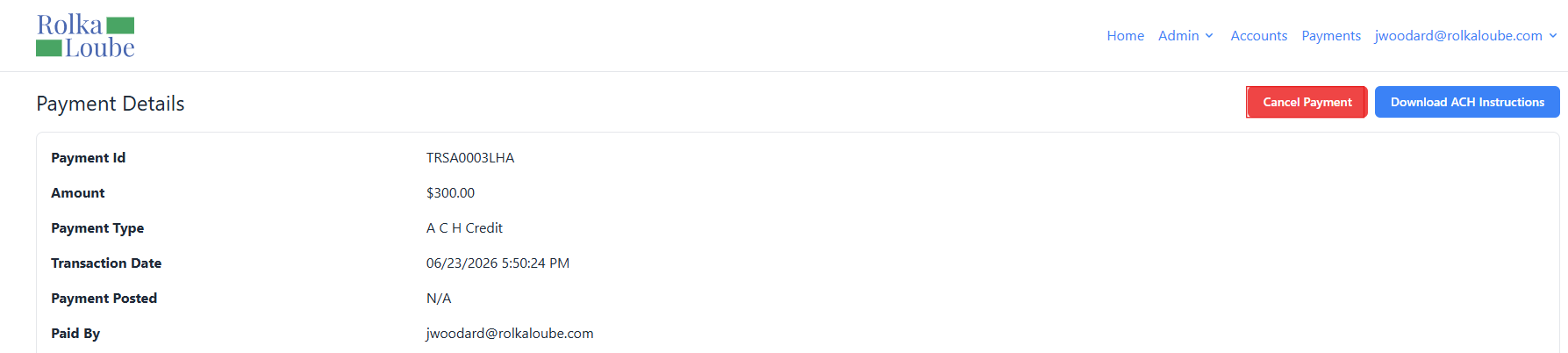
Payment Details -
Select Cancel Payment. The Cancel Payment pop-up window appears.
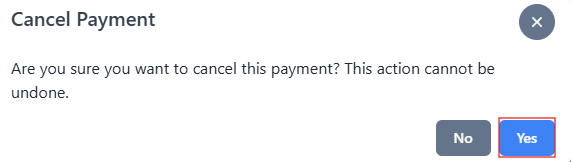
11, Select Yes. The payment is canceled and the message Payment Canceled appears in green.