
Use the following steps to log in to the RLPay application.
-
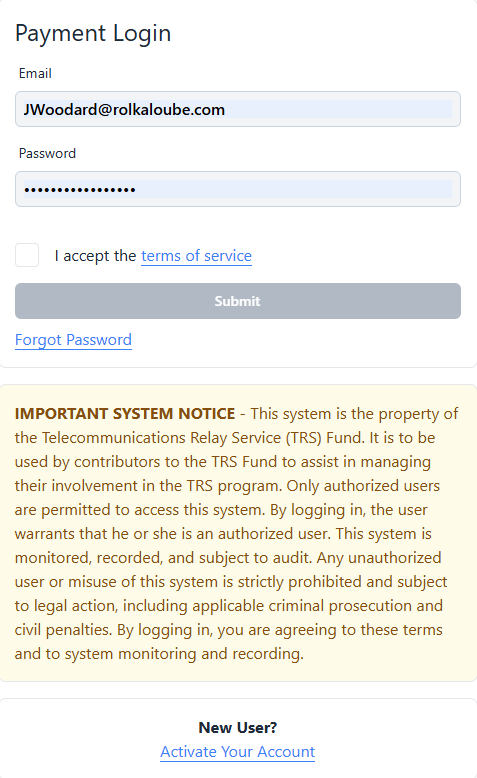
Navigate to http://pay.rolkaloube.com
-
Enter the email address and password associated with your RLPay account.
-
Select the checkbox confirming you accept the terms of service.
-
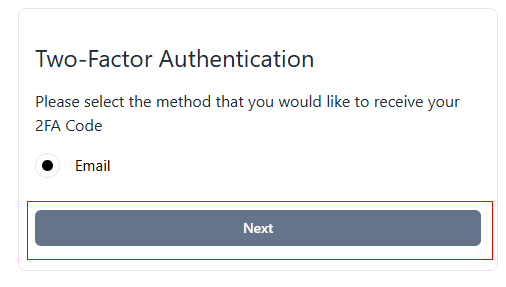
Select Submit. The Two-Factor Authentication page appears.
-
Select Next. The Verify Email Code page appears.
Note: Two-factor authentication is enabled by default for all users. Users can add an authenticator app such as Microsoft Authenticator. For more instructions on authentication, see Enable Two-Factor Authentication. -
Open your email.
-
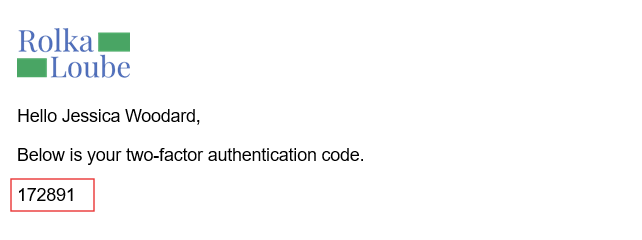
Check your email for a message from collections@noreply.rolkaloube.com.
Note: If you don't receive the email, ask your organization's IT administrator to whitelist collections@noreply.rolkaloube.com, check your Spam folder, or submit a ticket at TRS Contributor Service Desk - Jira Service Management.
-
Copy the two-factor authentication code.
Note: The code is only valid for six minutes.
-
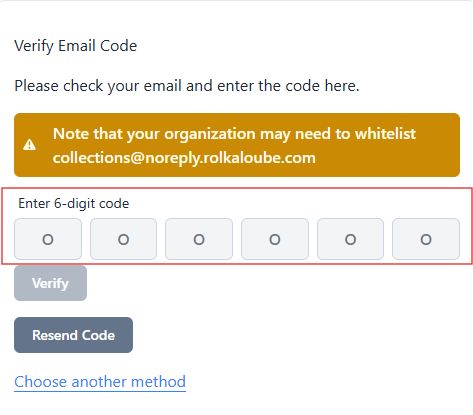
Enter the two-factor authentication code on the Verify Email Code page.
-
Select Verify. You will be redirected to the Account Summary page.
Note: If you did not receive the code, select Resend Code on the Verify Email Code page.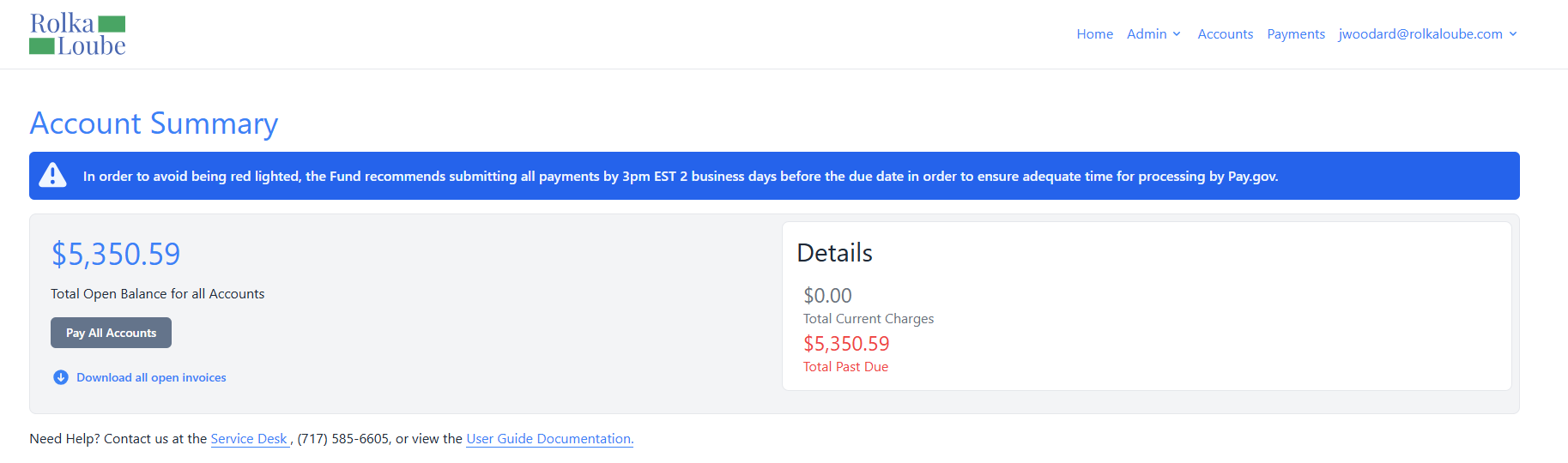
Account Summary