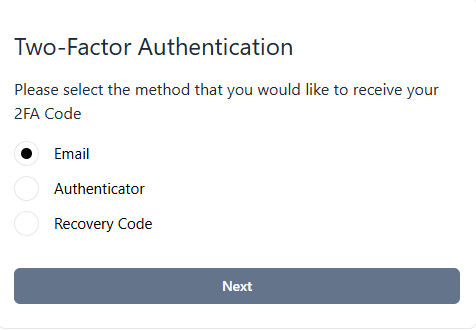
Enabling two-factor authentication (2FA) on your account adds an extra layer of security by requiring you to use an external authentication device at log in. You must download an authenticator app such as Google Authenticator or Microsoft Authenticator on your mobile device in order to enable 2FA. Use the following steps to enable 2FA.
-
Log in to the RLPay application. The Account Summary page appears.
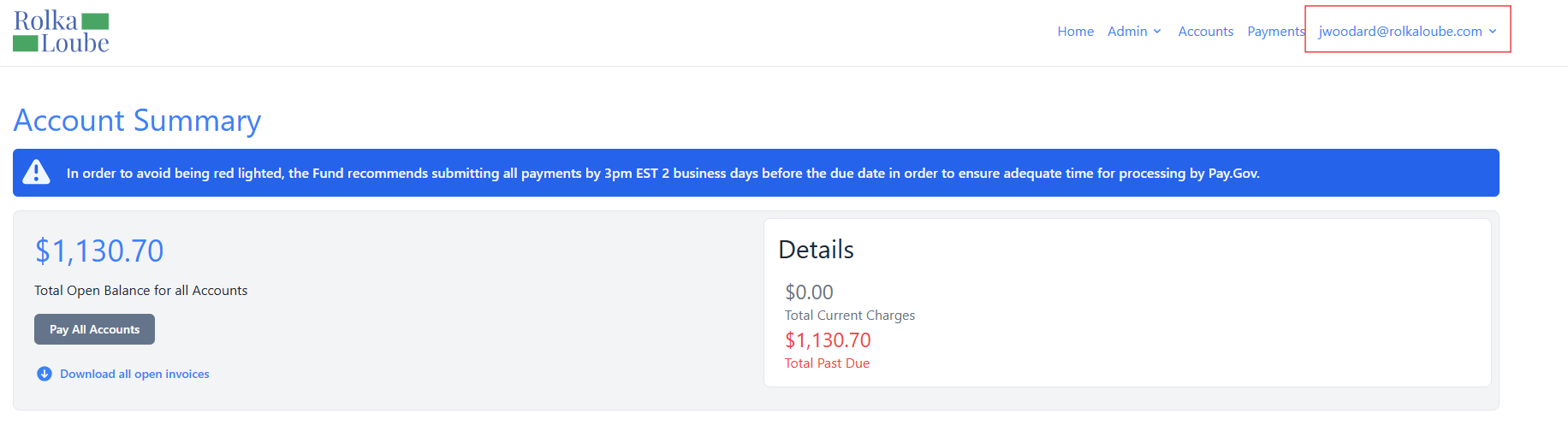
Account Summary
-
Select your email address in the upper-right corner.
-
Select Profile from the drop-down menu. The User Profile page appears.
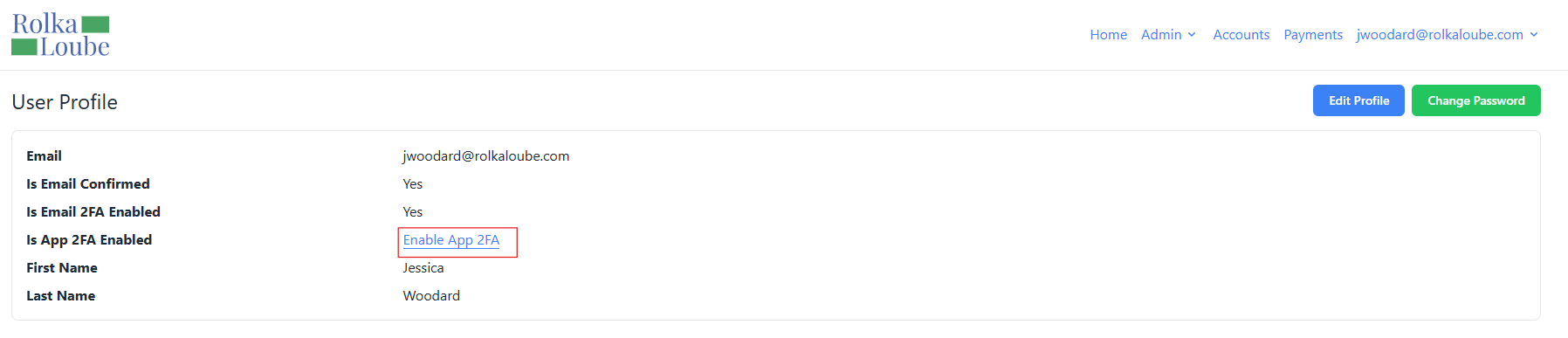
User Profile
-
Select Enable App 2FA. The Manage App 2FA page appears.

Enable App 2FA
-
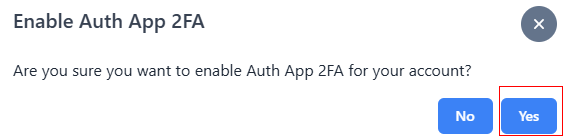
Select Enable App 2FA. The Enable Auth App 2FA pop-up window appears.
-
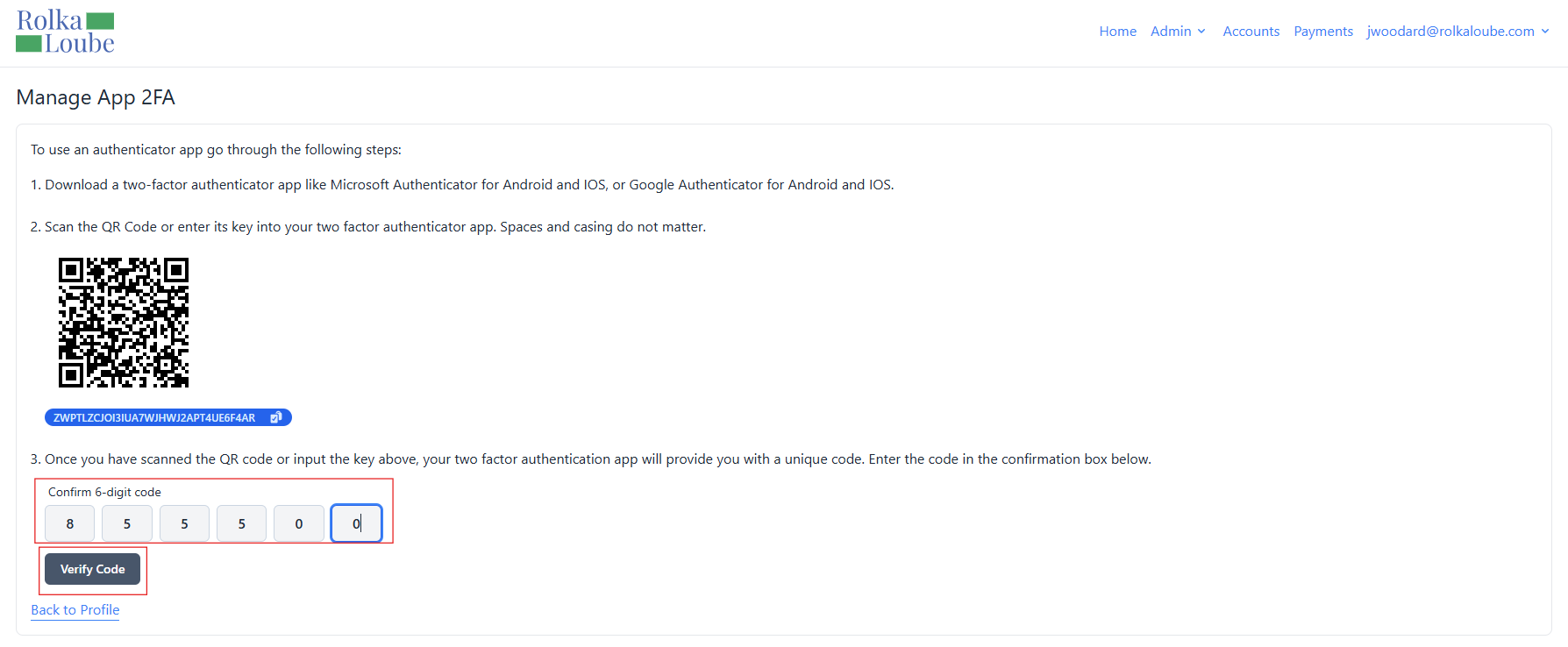
Select Yes. The Manage App 2FA page appears.
-
Follow the instructions on the Manage App 2FA page to obtain a six-digit verification code from your authenticator app.
-
Enter the six-digit authentication code in the Confirm 6-digit code field.
-
Select Verify Code. The message 2FA app configured successfully appears in green and a set of ten recovery codes is displayed.
Note: The next time you sign in, Authenticator and Recovery Code are available as authentication options. Recovery codes can be used only once and should be stored in a secure location.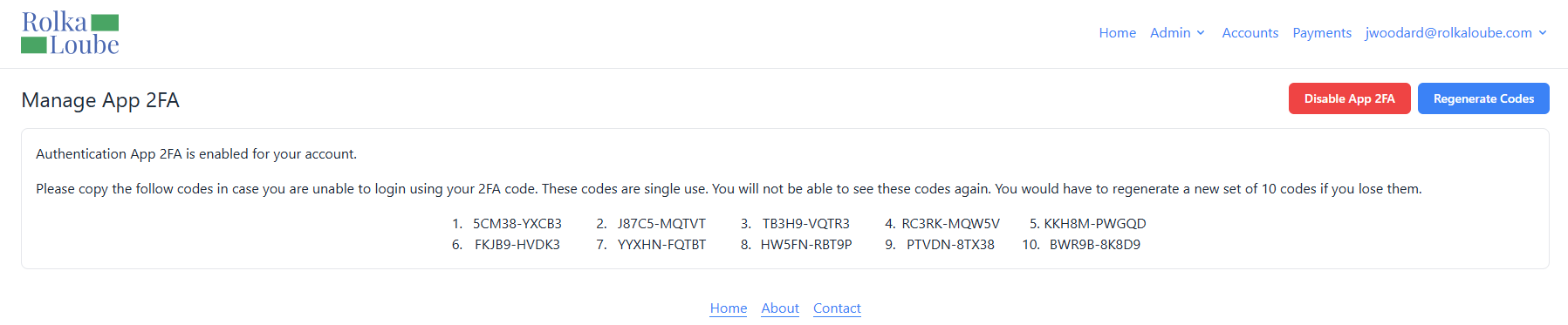
Manage App 2 FA