
Resetting your recovery codes generates a new set of ten recovery codes for future use. Recovery codes provide an alternative authentication method when you cannot access the six-digit verification code from your authenticator app. To use recovery codes, you must have two-factor authentication (2FA) enabled and a supported authenticator app, such as Microsoft Authenticator or Google Authenticator, configured for your account. Use the following steps to complete a recovery code reset.
-
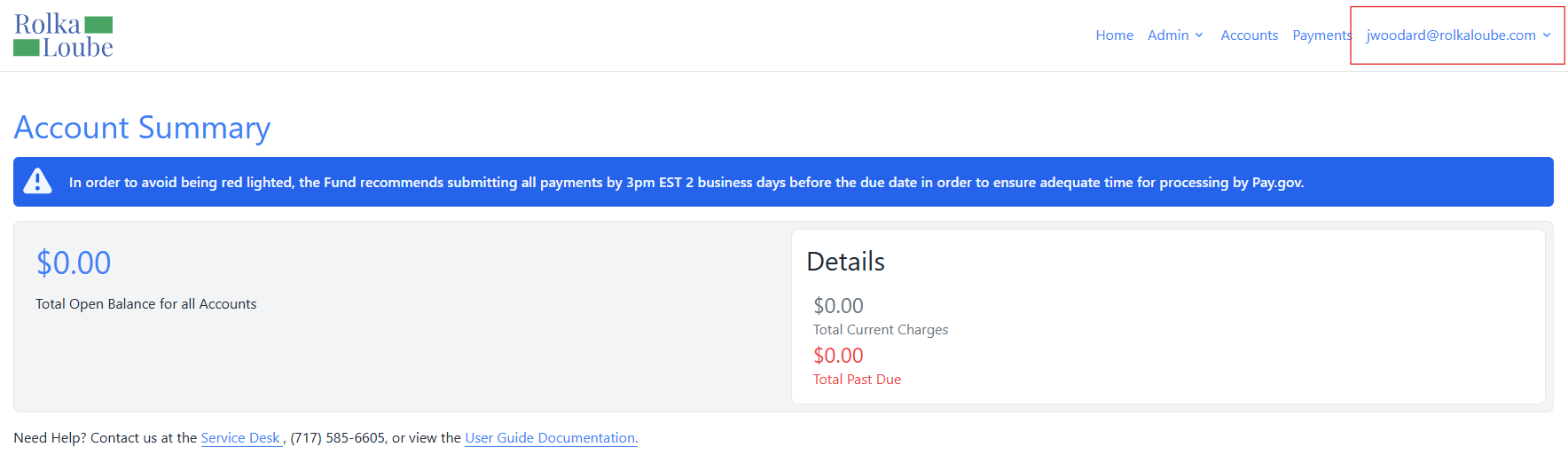
Log in to the RLPay application. The Account Summary page appears.
Account Summary -
Select your email address in the top right corner.
-
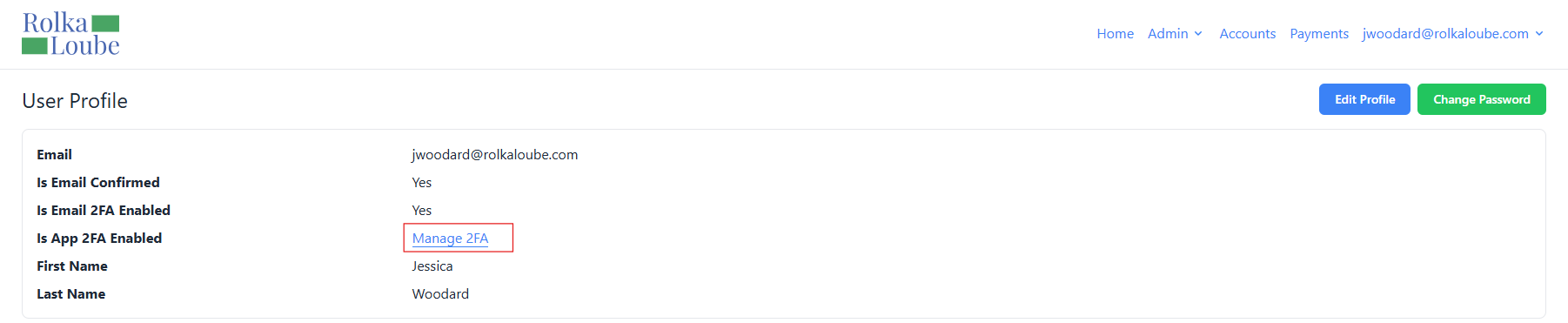
Select Profile from the drop-down menu. The User Profile page appears.
User Profile -
Select Manage 2FA. The Manage App 2FA page appears.

Manage App 2FA -
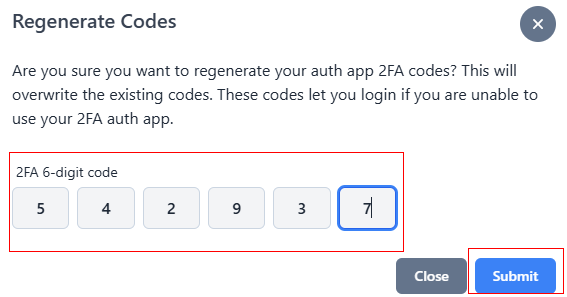
Select Regenerate Codes. The Regenerate Codes pop-up window appears.
-
Enter the six-digit code from your authenticator application.
-
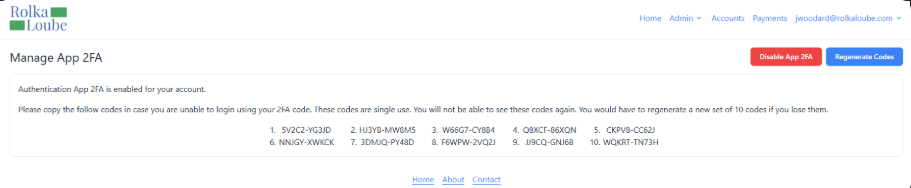
Select Submit. The message Codes regenerated successfully appears in green. The Manage App 2FA page appears with a set of ten new recovery codes.

-
Copy the ten new recovery codes and store them in a secure location.
Note: Each recovery code can be used only once to log in.