
Changing your password is a recommended security practice. You must have the old password available in order to change your password. Use the following steps to change a password.
-
Log in to the RLPay application. The Account Summary page appears.
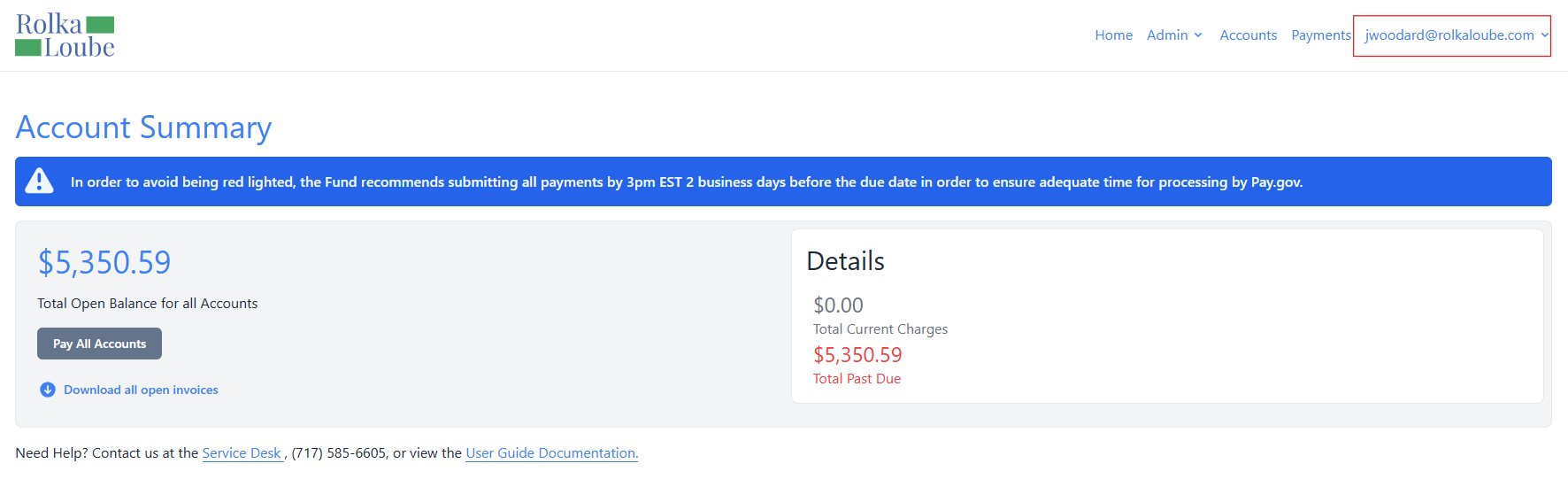
Account Summary -
Select your email in the upper-right corner.
-
Select Profile from the drop-down menu. The User Profile page appears.
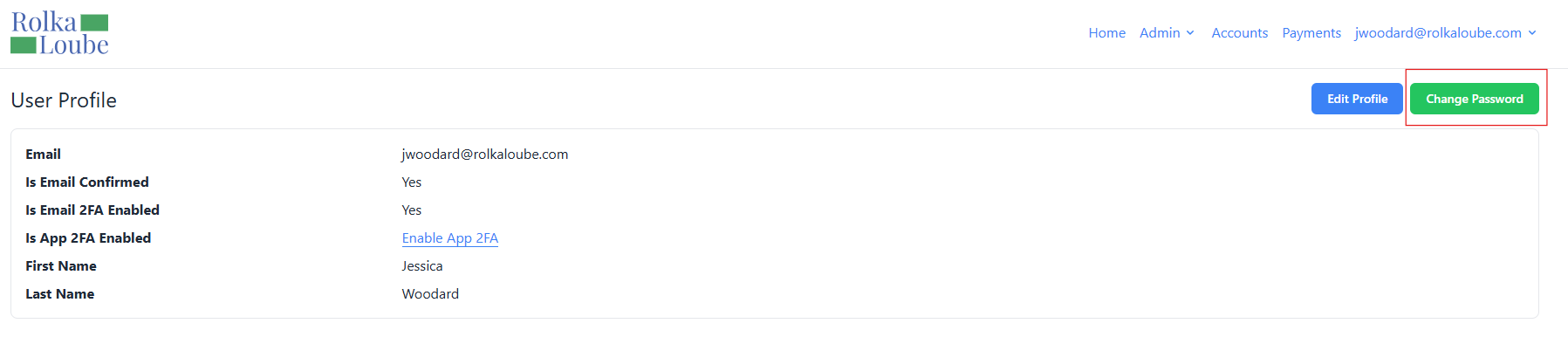
User Profile -
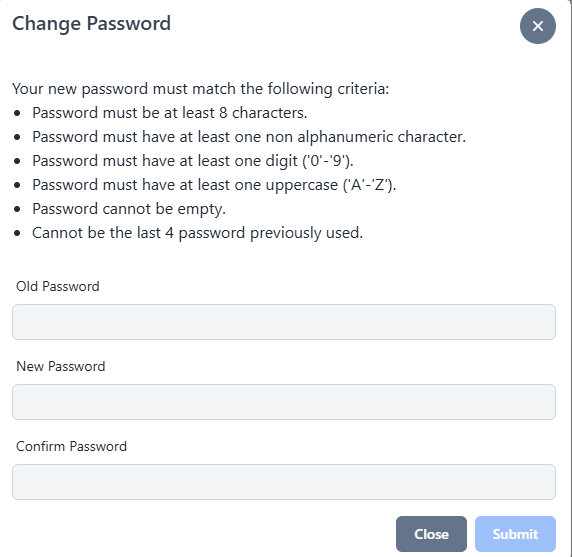
Select Change Password. The Change Password pop-up window appears.
-
Enter your old password in the Old Password field.
-
Enter a new password in the New Password and Confirm Password fields that meets the following requirements.
-
Must be at least 8 characters long
-
Must contain at least one uppercase and one lowercase character
-
Must contain one number and one non-alphanumeric character
-
Cannot be one of the last 4 previously used passwords
-
-
Select Submit. The message Password Changed Successfully appears in green.
