
Use the following steps to reset your password for the RLPay application without logging in.
-
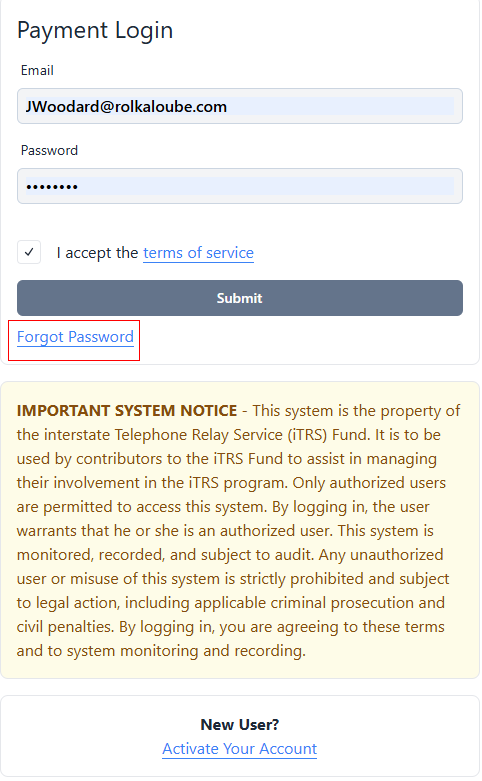
Navigate to Login - ACESX (rolkaloube.com).
-
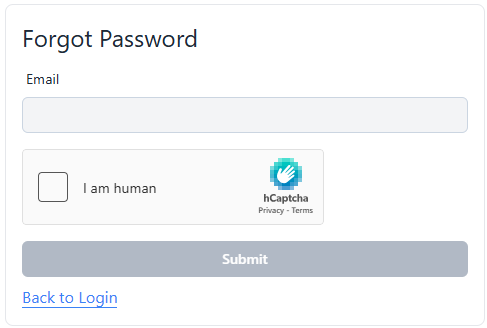
Select Forgot Password. The Forgot Password page appears.
-
Enter the email address associated with your RLPay account.
-
Select the checkbox confirming you are human.
Note: You must successfully compete the hCaptcha task in order to submit your account information. -
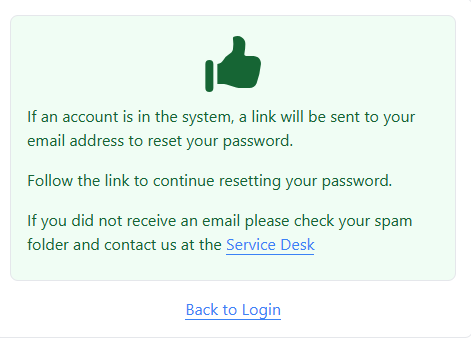
Select Submit. A confirmation appears.
-
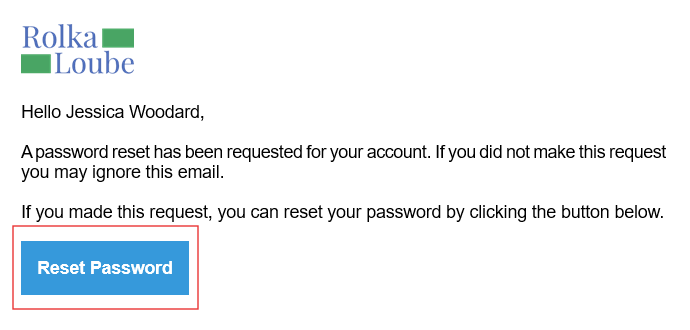
Open the password recovery email from collections@noreply.rolkaloube.com.
-
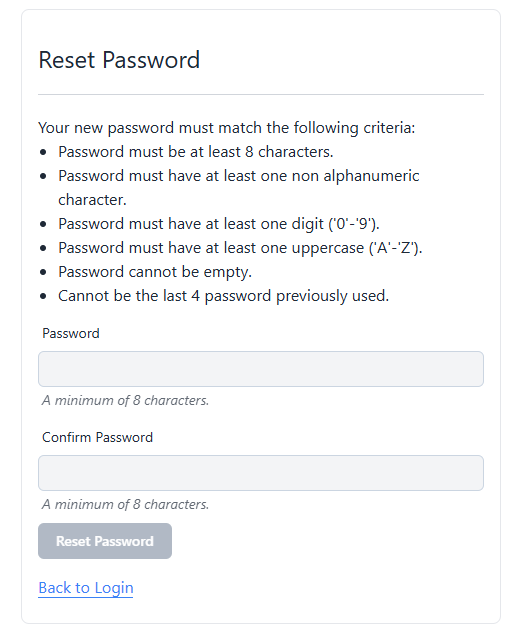
Select the Reset Password button in the email. You will be redirected to the Reset Password page.
-
Enter a new password in the Password and Confirm Password fields that meets the following requirements:
-
Must be at least 8 characters long
-
Must contain at least one uppercase and one lowercase character
-
Must contain one number and one non-alphanumeric character
-
Cannot be one of the last 4 previously used passwords
-
-
Select Reset Password. The message Password reset successful! Redirecting to login… appears in green and you will be redirected back to the Login page.

-
Enter the email address and new password associated with your RLPay account.
-
Follow the steps for logging in: Log In.