
Use the following steps to download an invoice from the payments page.
-
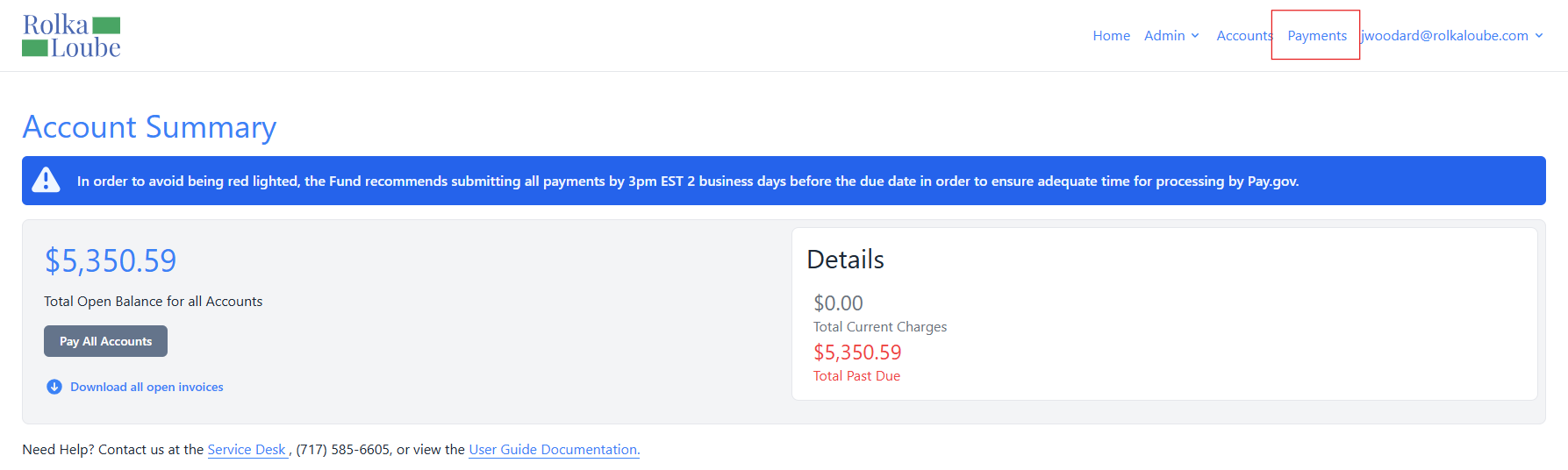
Log in to the RLPay application. The Account Summary page appears.
Account Summary -
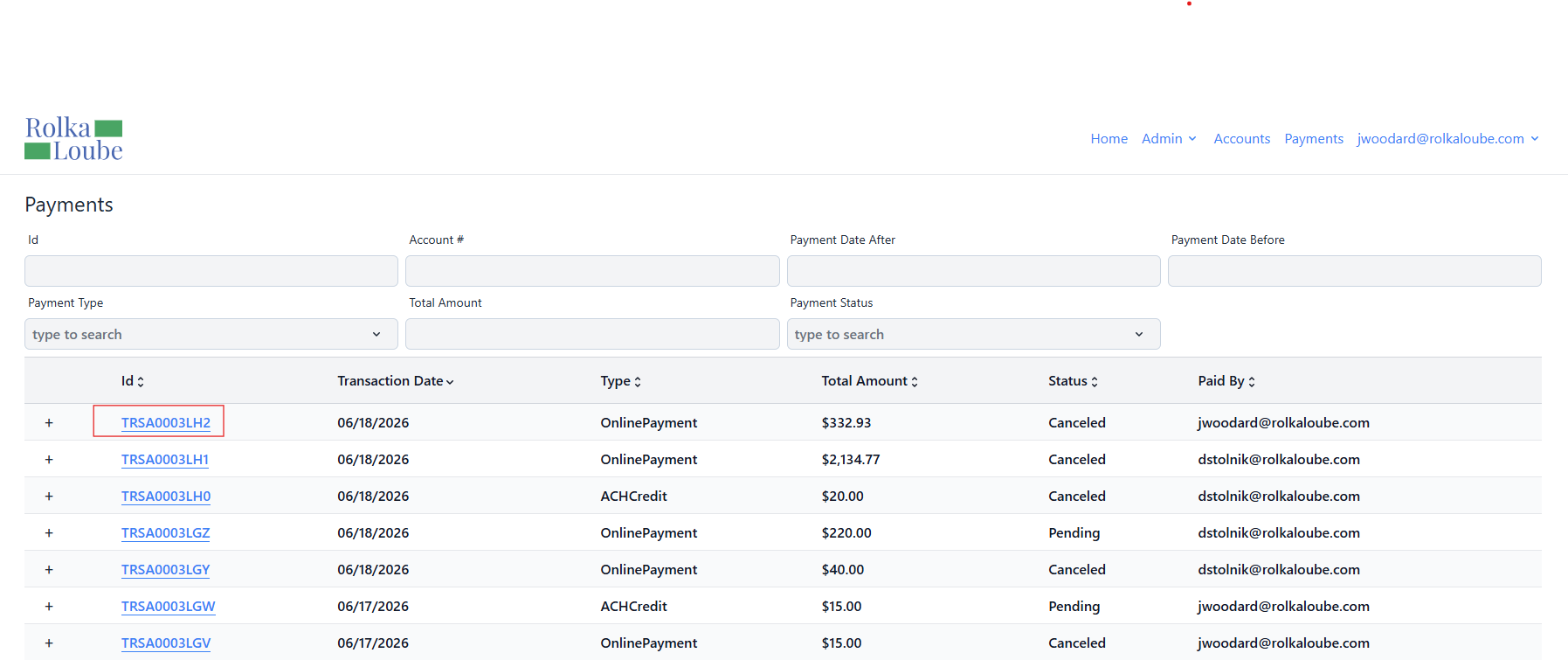
Select Payments at the top of the page.
Payments -
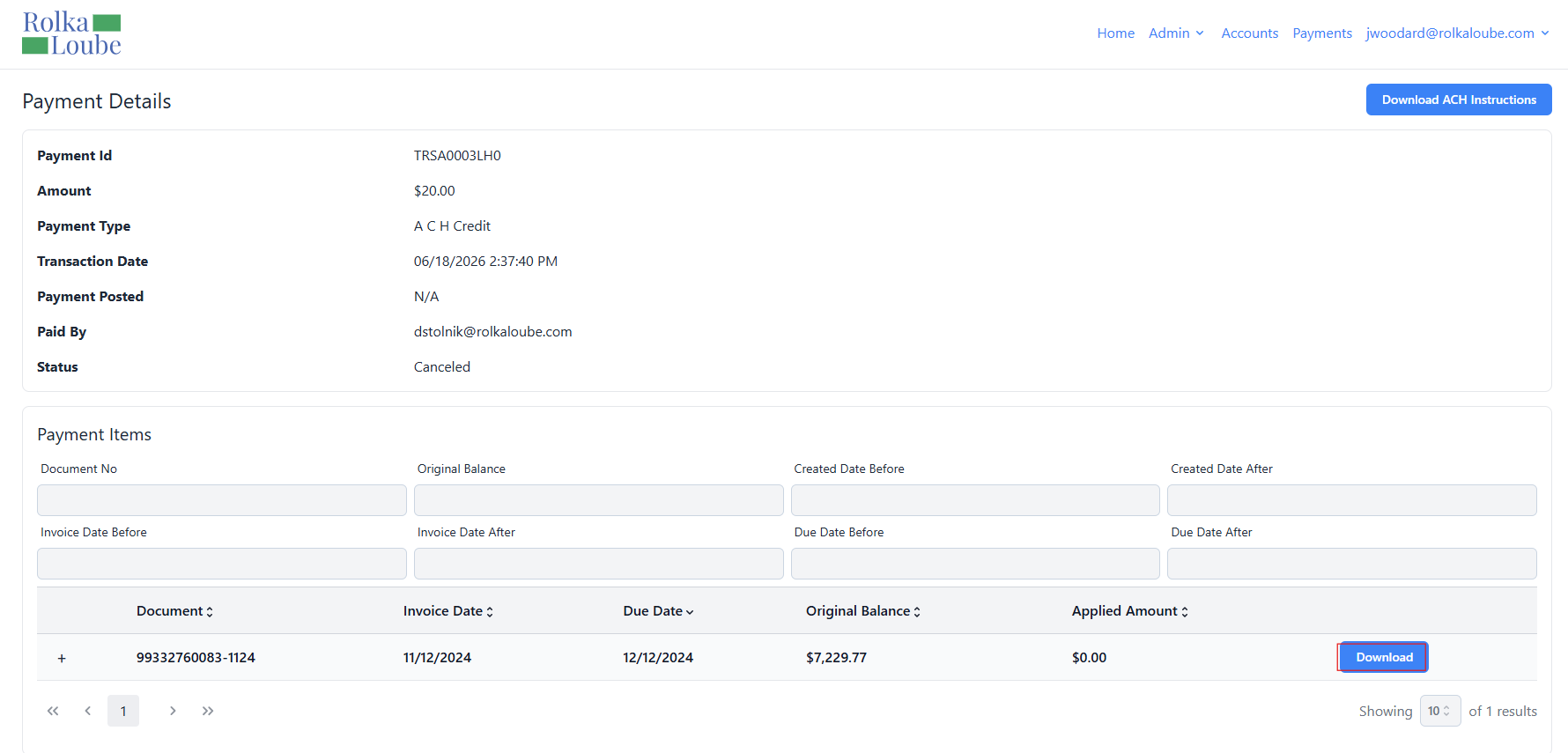
Select the Id of the payment you want to view. The Payment Details page appears.
Note: You will only see the data from the invoices and accounts to which you have access.
-
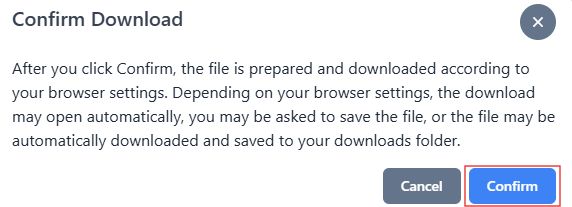
Select Download. The Confirm Download pop-up window appears.
-
Select Confirm. After a short wait, the file will be downloaded to your computer. Please refrain from navigating away from the page until the download is complete.