Paying selected accounts via online bank account allows the contributor to pay one or more of their accounts using their online bank account details. Use the following steps to pay selected accounts via online bank account.
-
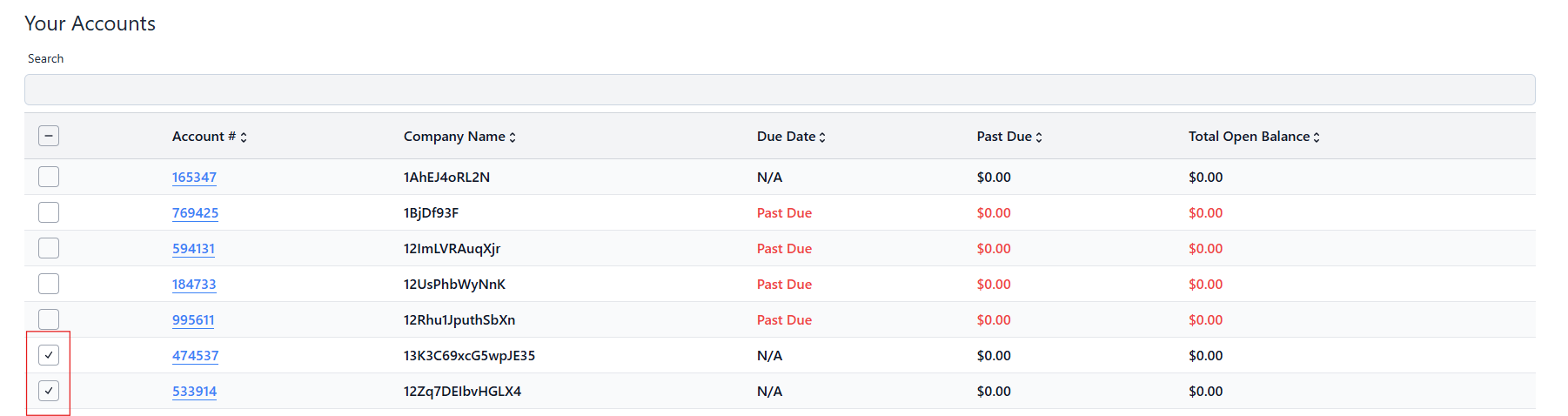
Log in to the RLPay application. The Account Summary page appears.
Account Summary -
Select the checkbox(es) next to the account(s) you want to pay.
-
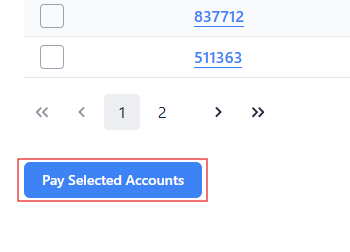
Select Pay Selected Accounts. The Choose Payment Amounts page appears.
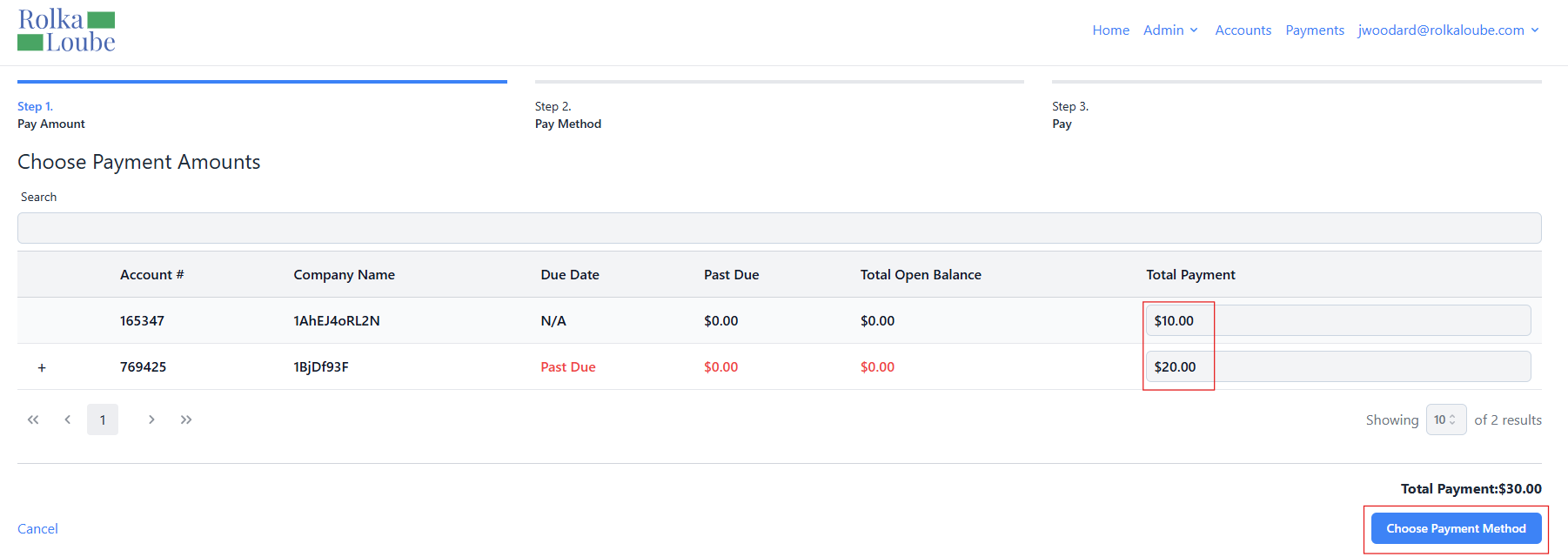
Choose Payment Amounts -
Enter the amount you want to pay for each account in the Total Payment field.
Note: Your payment amount must be greater than zero in order to choose the payment method.
You can also overpay an account, but that amount will stay on the account until it is applied to the next available invoice. -
Select Choose Payment Method. The Choose a Payment Method page appears.
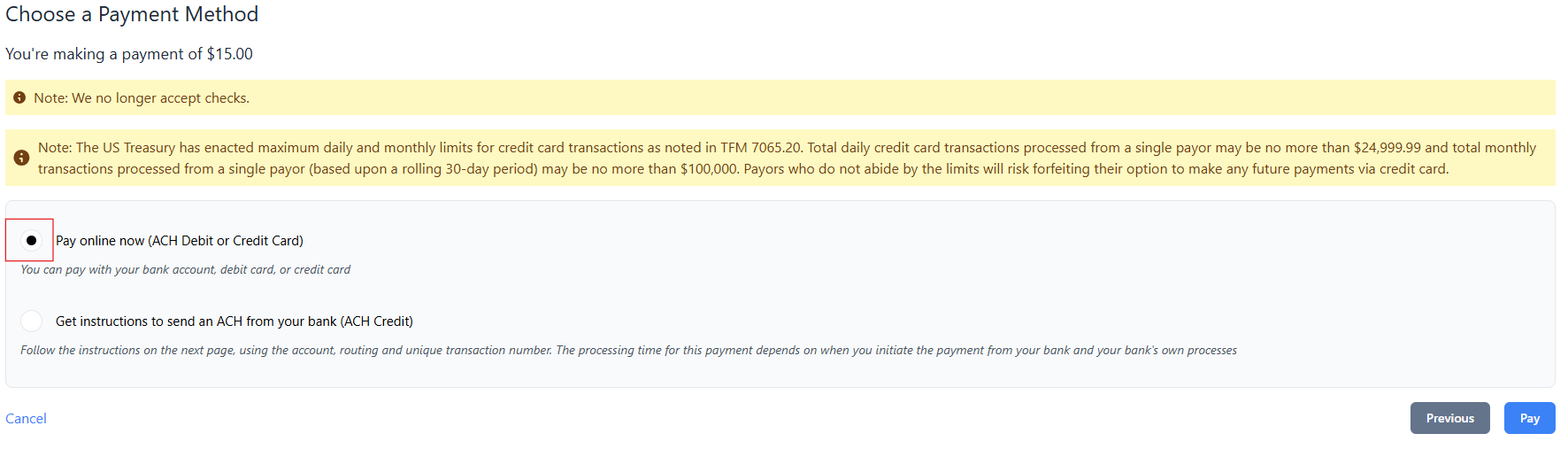
Choose a Payment Method -
Select Pay online now (ACH Debit or Credit Card).
Note: This option allows you to pay with your bank account, debit card, or credit card. -
Select Pay. The Redirect Notice pop-up window appears.
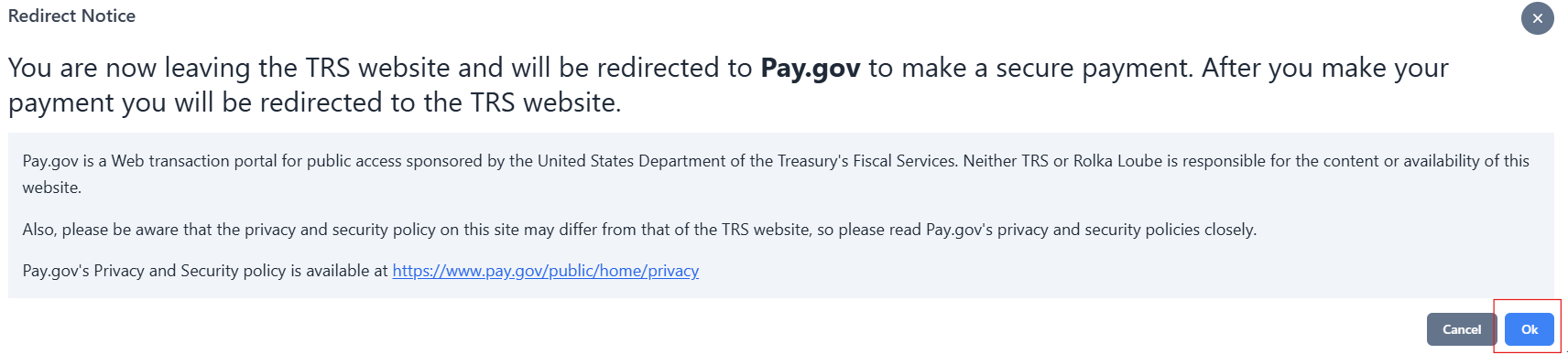
Redirect Notice -
Select Ok. You are redirected to Pay.gov.
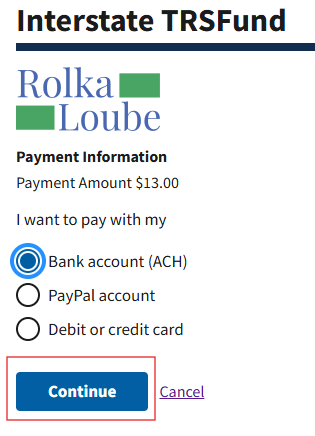
-
Select Bank account (ACH).
Note: PayPal is not a currently supported payment option. -
Select Continue.
-
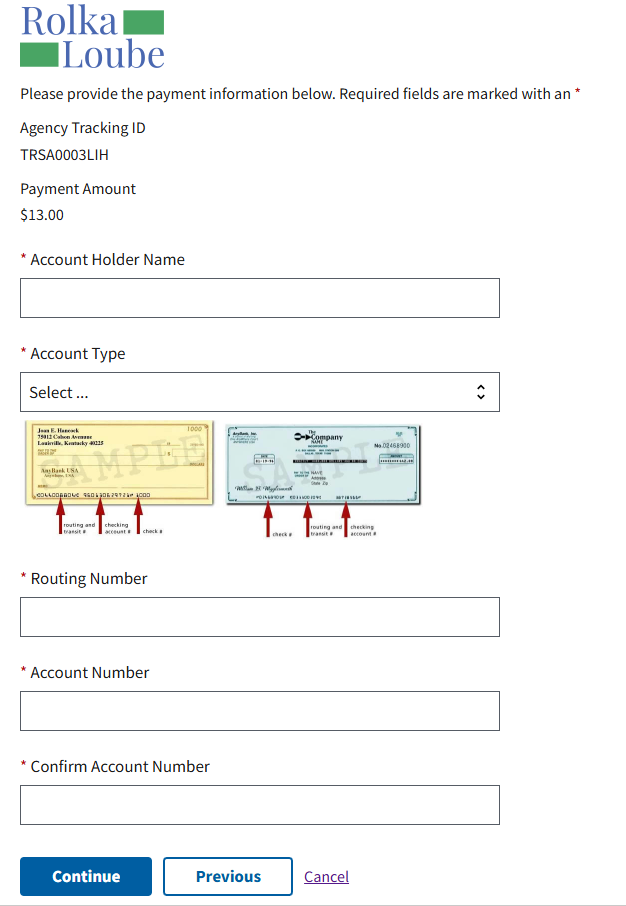
Enter the necessary data to complete the required fields:
-
-
Account Holder Name
-
Account Type
-
Routing Number
-
Account Number
-
Confirm Account Number
-
-
Select Continue.

-
Select the checkbox confirming you agree to the authorization and disclosure statement.
-
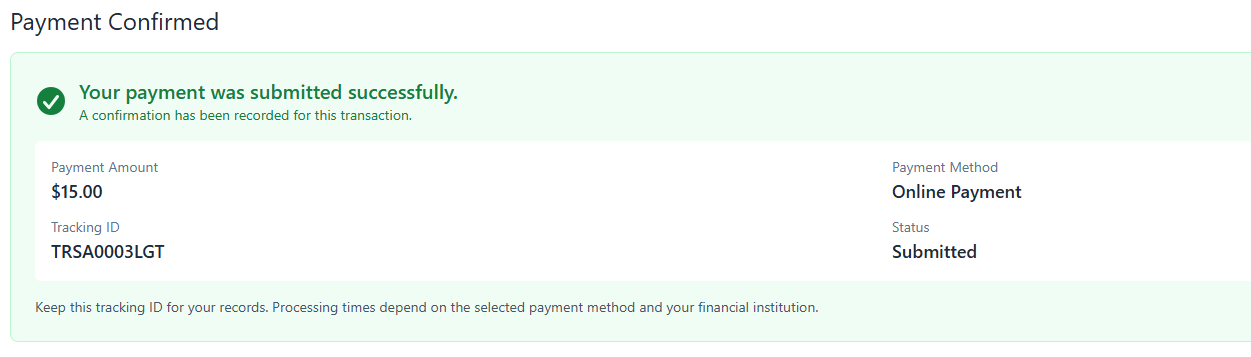
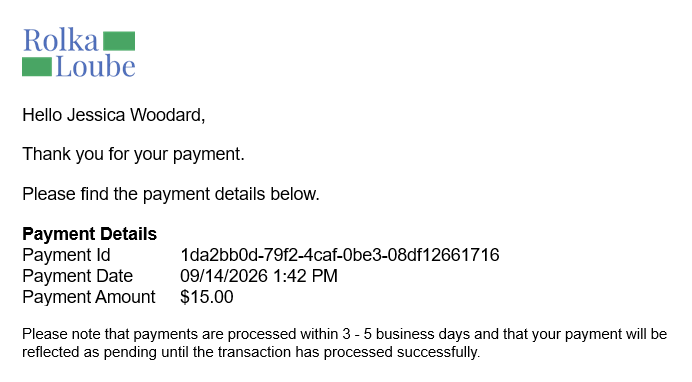
Select Continue. A payment confirmation appears and a receipt for payment is sent to your email address.
Note: If you make a payment on an overdue account, it will still say past due with a $0 amount until the payment is cleared by Treasury, which may take 1-3 business days.