
Paying selected accounts via ACH credit allows the contributor to pay one or more of their accounts by downloading instructions about sending an ACH from their financial institution. Use the following steps to pay selected accounts via ACH credit.
-
Log in to the RLPay application. The Account Summary page appears.
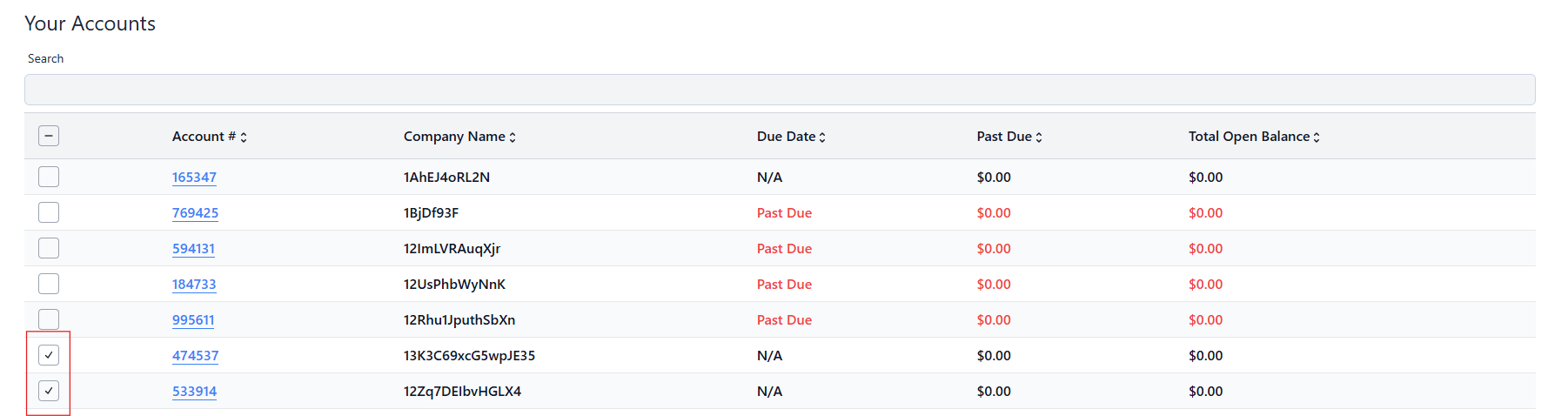
Account Summary -
Select the checkbox(es) next to the account(s) you want to pay.
-
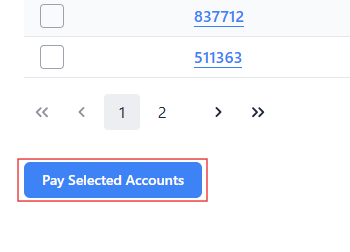
Select Pay Selected Accounts. The Choose Payment Amounts page appears.
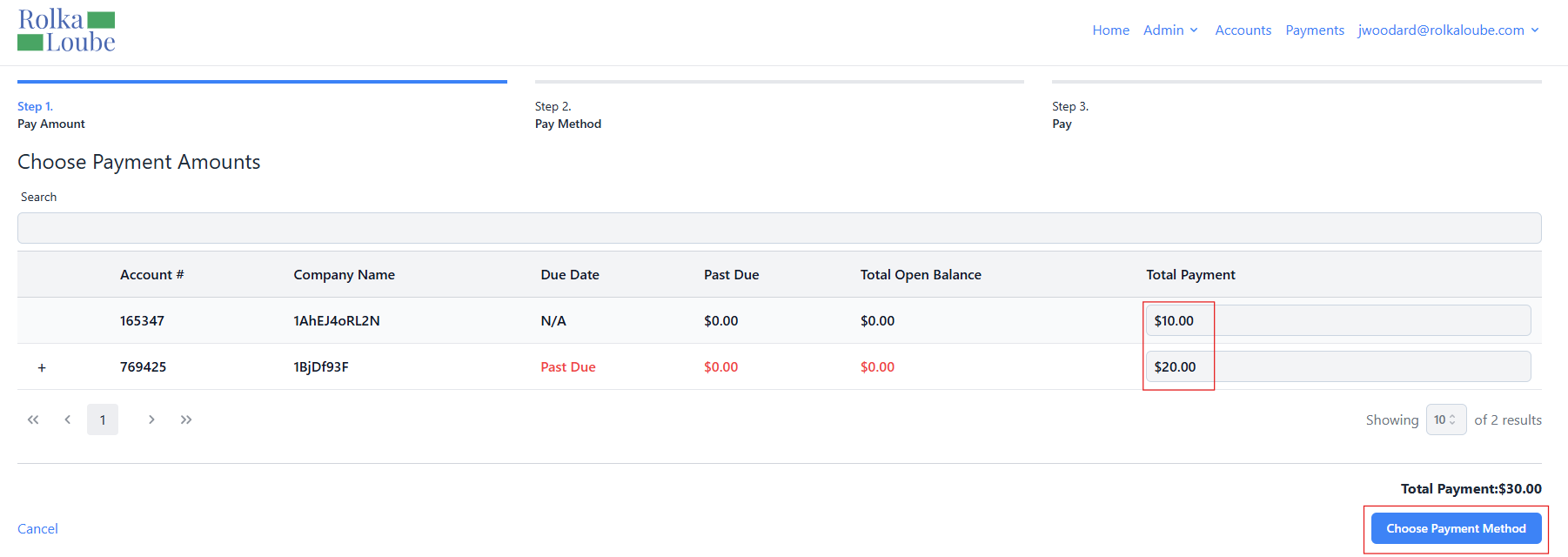
Choose Payment Amounts -
Enter the amount you want to pay for each account in the Total Payment field.
Note: Your payment amount must be greater than zero in order to choose the payment method. -
Select Choose Payment Method. The Choose a Payment Method page appears.
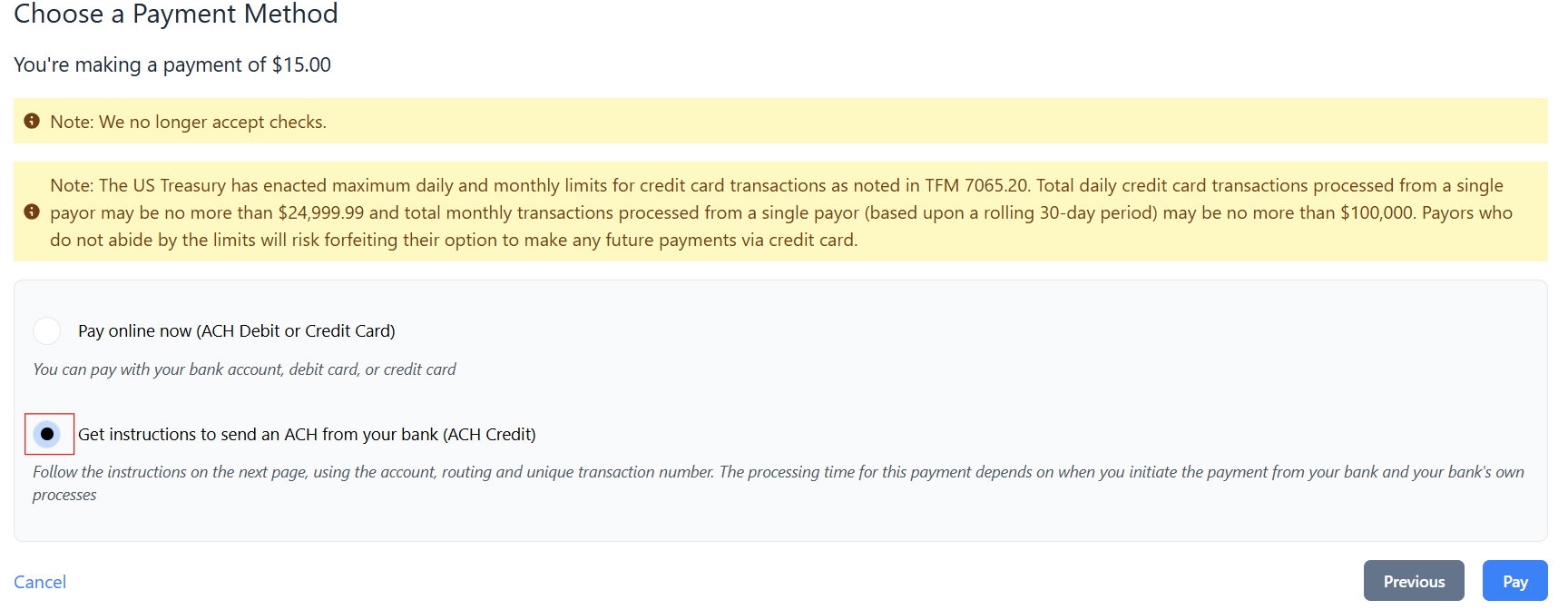
Choose A Payment Method
-
Select Get instructions to send an ACH from your bank (ACH credit).
-
Select Pay. The ACH Notice pop-up widow appears.
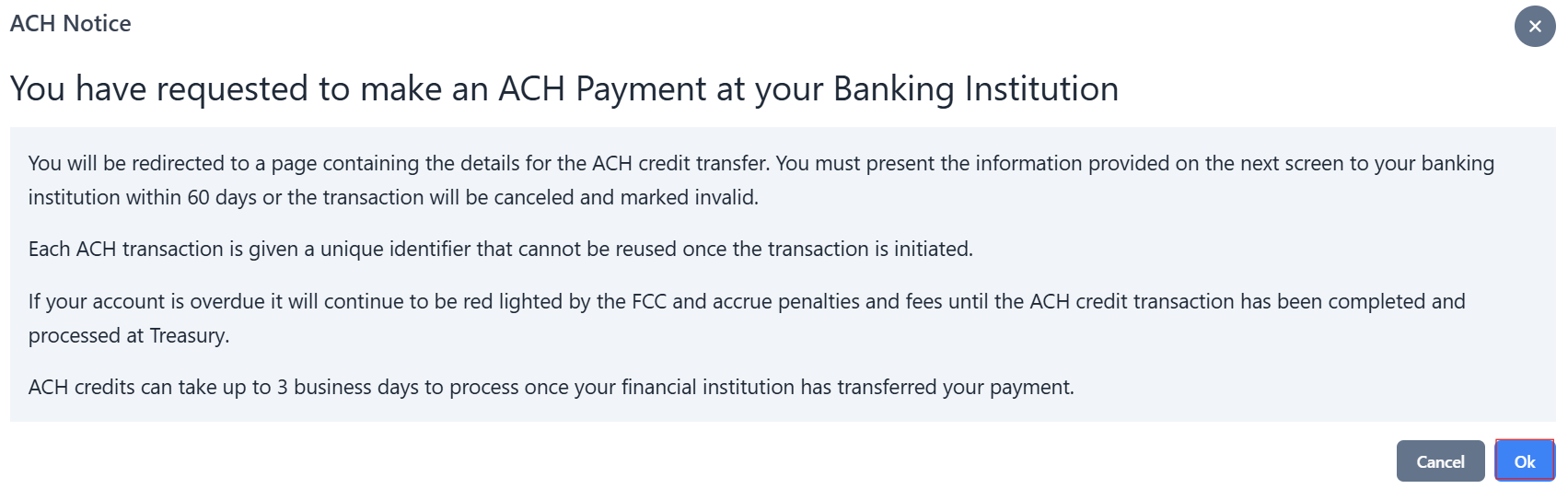
ACH Notice -
Select Ok. A receipt for payment is sent to your email address. The Credit Payments Notice page appears.
-
Scroll down to the bottom of the page.
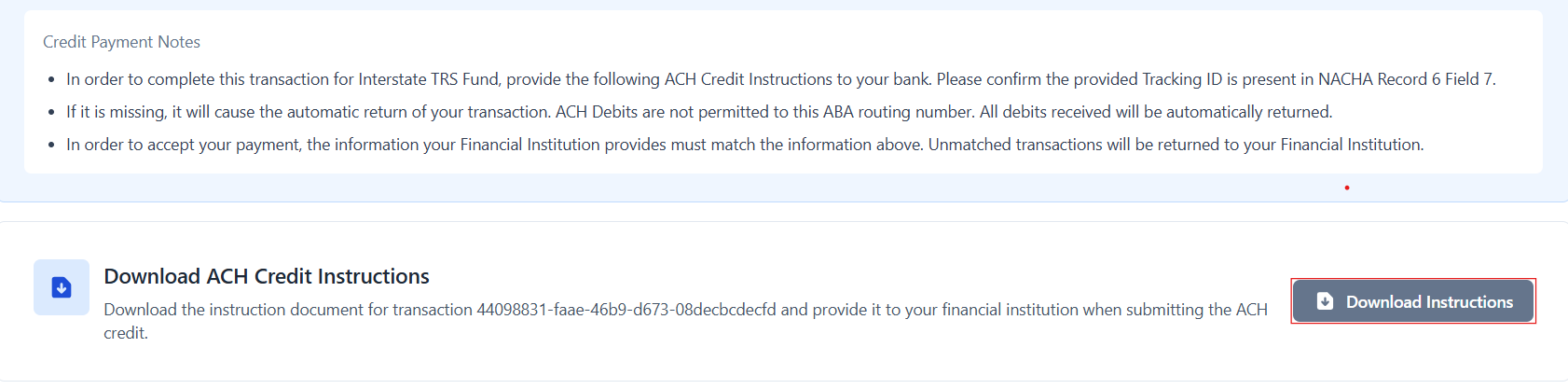
Credit Payments Notice -
Select Download Instructions. The Confirm Download pop-up window appears.
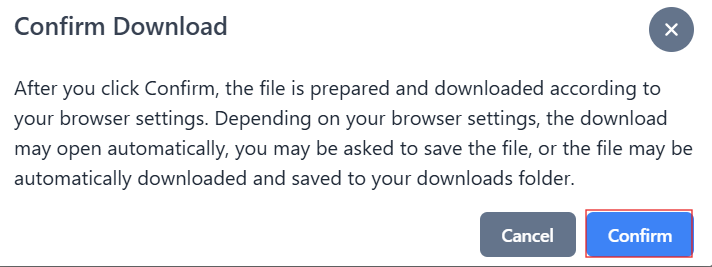
-
Select Confirm. The file is downloaded to your computer.
Note: In order to pay your account, you must provide the ACH Credit Instructions you downloaded to your financial institution.